Manual Mode, Sync Status, and Better Performance + 12 Bug Fix (25.12.04)
📌 Summary
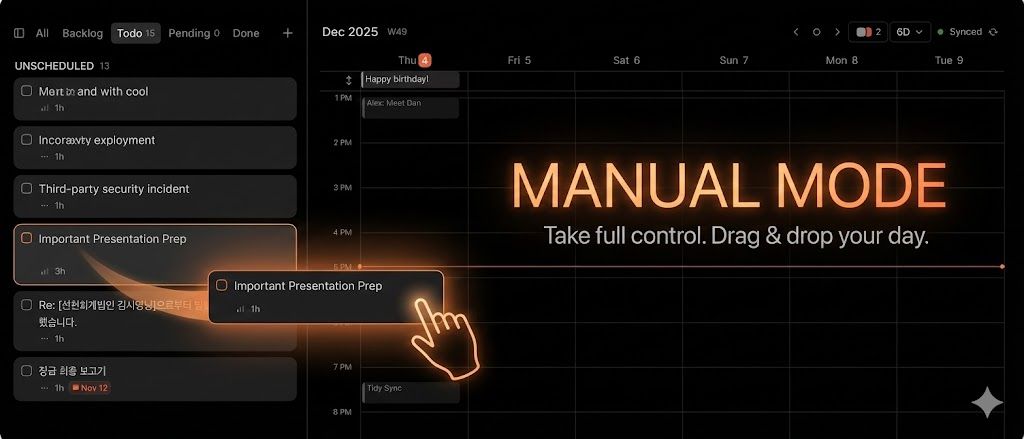
Manual Mode: A mode to manage schedules directly without Auto Planning is back.
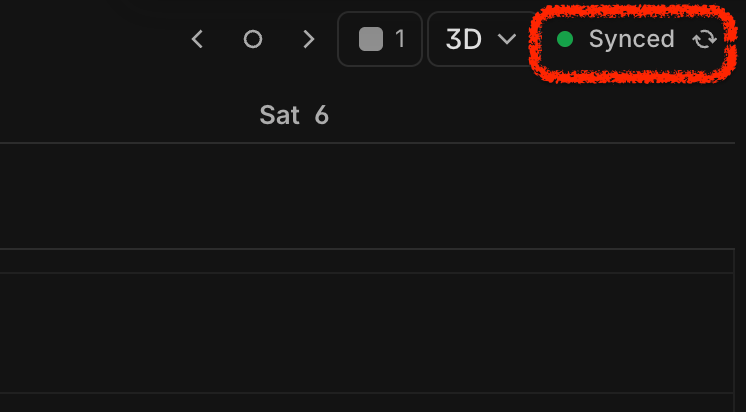
Sync Status Indicator: Check in real-time if your data is saved (Synced/Offline).
Calendar Height Settings: Adjust the height of calendar slots (Medium/High).
'C' Shortcut Improved: Creates an event at the current time on today, regardless of which date you are viewing.
Create & Play: Create a task and start the timer immediately (
Shift+Enter).Bug Fixes: Improvements in sync stability, sequential playback errors, UI refinements, and more.
🎯 The Return of Manual Mode
Why did we bring it back?
Actually, Manual Mode is similar to the manual planning feature that existed in the early days of OFFLIGHT. It disappeared with the introduction of Auto Planning, but it has been reborn based on feedback from many users.
Pain points of the existing Auto Planning:
"It pulls in all empty schedules regardless of what I want."
"Work has context, but it just arranges everything forcibly, so I stopped creating tasks in OFFLIGHT."
Now, you can turn off Auto Planning and manage your schedule entirely manually.
⚡ Advantages of Manual Mode
Auto Planning performs complex calculations to determine the optimal schedule. This process naturally led to some sluggish behavior. In Manual Mode, these calculations are removed, making the product run much faster and smoother.
How to enable Manual Mode:
Settings > Auto Planning > Toggle OFF
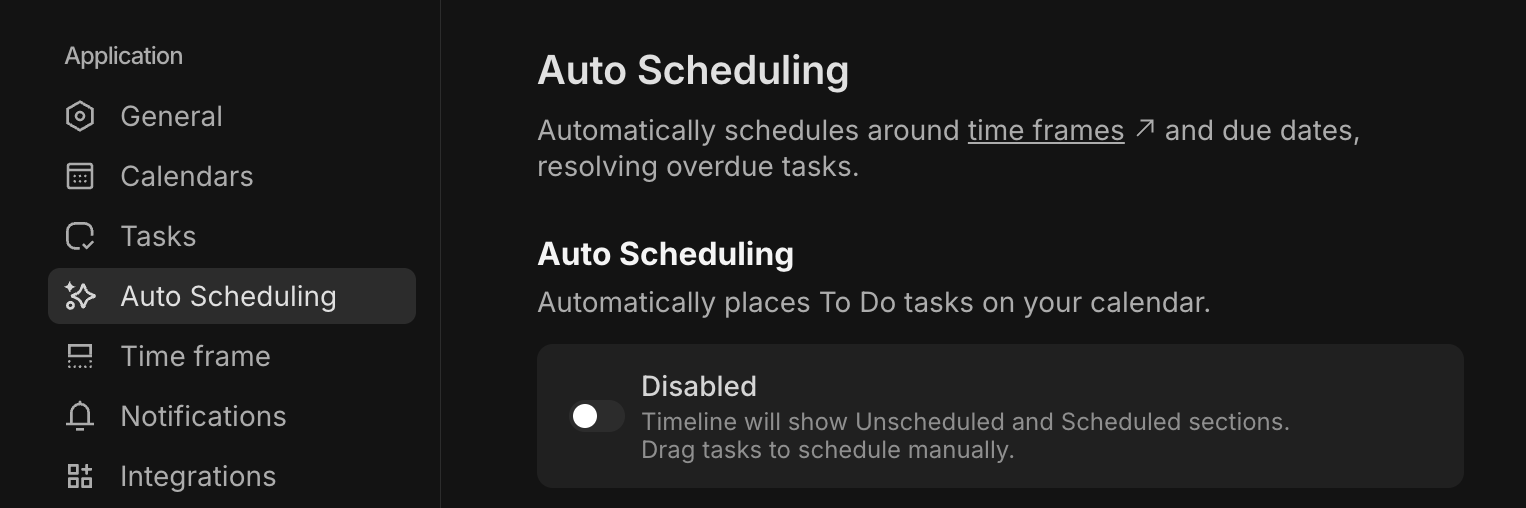
The moment you turn it off:
Auto-arranged sessions (dotted lines) will be deleted.
Manually set Time Blocks and Schedule After settings are maintained.
The Timeline tab changes to a Todo tab.
Manual Mode UX: Scheduled vs. Unscheduled
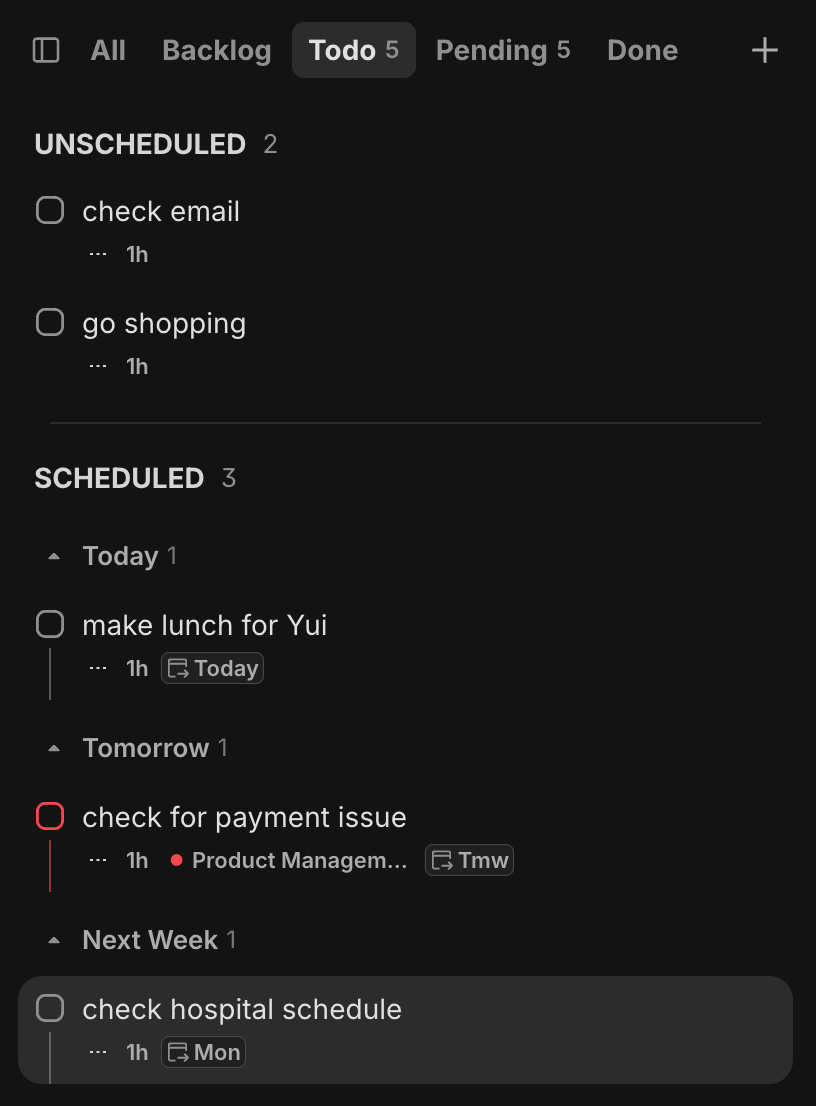
Conditions for a task to appear in 'Scheduled':
If a Time Block is created (Time assigned on the calendar).
If 'Schedule After' is set (Date assigned only).
If neither exists: → Appears in Unscheduled.
If a task has both a Time Block + Schedule After:
It is grouped based on the Time Block.
Example: Even if 'Schedule After' is set to Friday, if the Time Block is set for today, it appears in Today.
Scheduled Sorting Rules
Within the same date group:
Tasks with Time Blocks come first (sorted by start time).
Date-only tasks come next.
Tasks with Time Blocks display a 🔒 icon and the start time (e.g., 09:00) as a label.
How to Move Tasks
🔄 Sync Status Indicator
"Is it saved? Is it not?"
OFFLIGHT was built to use local memory for fast client response speeds. However, in unstable network environments, or if the page was refreshed before synchronization was complete, data could be lost, or edits reverted.
"I edited it, but is it saved?"
"Is it safe to refresh?"
"Will it show up on my other devices immediately?"
Now, you can check the status in real-time at the top right of the screen.
Status Meanings
This applies to calendar event edits as well. Whether it's a task or a calendar entry, ensure the status is Synced for safety.
📏 Calendar Slot Height Settings
Why did we make this?
Users view the calendar in various environments:
Large Monitor: "One slot is too narrow; I can't see the content."
Laptop: "It's just right."
Now you can adjust the height in Settings > Calendar.
⚡ Quick Event Creation ('C' Shortcut)
Improvements
Pressing the C key on the calendar now creates an event at the current time.
Previous Issue:
If you were viewing a different date, the event was created on that date.
You had to hunt for where the event was created.
Now:
Pressing
Cautomatically jumps to Today + Current Time.The event is created right in front of your eyes.
🎮 Create & Play Button
Why did we make this?
There was a frequent pattern of creating a task and starting it immediately:
Create Task
Click Play Button
Now you can do it all at once.
How to use
Mouse: Click the
▼next to the Create button → Select "Create & Play".Keyboard:
Enter→ Create only.Shift+Enter→ Create + Start immediately.
When using Create + Play, the calendar automatically scrolls to the current time. Even if you are viewing a different date, it moves to Today.
🐛 Bug Fixes
Cache Synchronization Stabilization
Fixed an issue where deleted tasks would momentarily reappear and then vanish.
Fixed an issue where edited content would revert briefly before applying.
Fixed an issue where tasks would jump between different locations.
Lane UI Improvements
Lane open/close states are now maintained after a refresh.
Fixed an issue where the "Create Task" button at the top of a lane overlapped with other elements, making it hard to click.
Fixed a scrolling issue where selected tasks were hidden behind the Sticky Header.
Input UI Improvements
Fixed an issue where keyboard arrow keys didn't work when entering dates for 'Schedule After' or 'Deadline'.
Dates can now be selected using only the keyboard without mouse clicks.
Sequential Playback Fixes
Scenario: Task A Create+Play → Task B Create+Play.
Previously: Both A and B appeared to be playing simultaneously. 😱
Now: A automatically pauses, and only B plays. ✅
Session Save Logic Change
Previously: Playback under 5 mins → Not recorded.
Now: Playback under 10 seconds → Not recorded.
Sessions are only deleted if you "accidentally clicked and turned it off immediately." Short tasks are now recorded in history.
Other Fixes
Fixed an issue where Auto Planning would run when moving sessions in Manual Mode.
Fixed an issue where scroll position became misaligned after changing Calendar Height settings.
Fixed an issue where the task card quick menu was always visible (now only visible on hover).
Fixed an issue where content wasn't saved in the task creation popover (now saves even if you press ESC).
TMI: Today (US time) is my birthday! haha.
I am genuinely happy to be able to deliver these long-awaited improvements on my birthday. :)
Special Thanks to Alex for sharing user feedback with me :)