Lists are now Goals + Tags (25.12.28)
✨ What's New
Lists are now Goals + Tags - Projects become Goals, categories become Tags
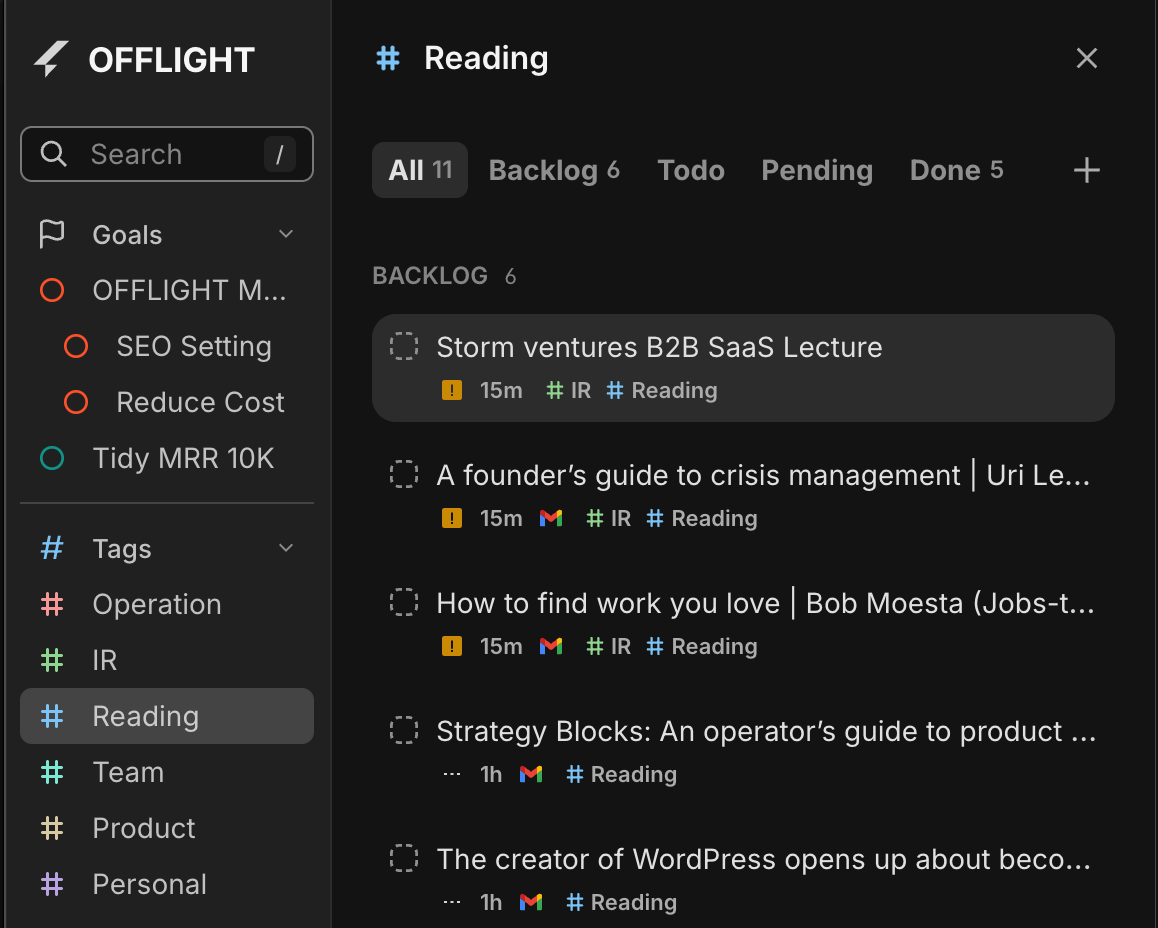
Dedicated Goal/Tag Views - See only related tasks + auto-calculated progress for Goals
Multi-select - Select multiple tasks and batch process them
Go to Date - Jump to any date instantly
🎯 Lists → Goals + Tags
The Problem
I had "Landing Page Launch" (a project with a deadline) mixed together with "Development" (just a category) in the same list. They're completely different things.
When a project wraps up, I want it gone from my view—but not deleted. I just want to archive it.
The Solution
We split Lists into two purpose-built tools:
Read on for the details.
📊 Goals
Access from the Sidebar
Finding tasks for a specific goal meant endless scrolling through my task list. I just wanted to see all tasks for that goal in one place.
We heard you. Goals now live in the sidebar.
Each goal shows a progress bar at a glance
Click to open a dedicated view with only that goal's tasks
Sub-goals for Big Projects
Break down large goals into smaller milestones.
Auto-calculated progress: Parent goal progress updates based on sub-goals
Choose between average or sum calculation
Archive Completed Goals
Done with a goal? Archive it in Settings to hide it from your list. You can always restore it later.
Keyboard Shortcuts
🏷️ Tags
Unlike Goals, Tags are for lightweight categorization.
Assign multiple tags to a single task
Color-code tags for visual distinction
Tag View
Click any tag in the sidebar to see all tasks with that tag. Works just like Goal view.
Keyboard Shortcuts
✅ Multi-select
The Problem
Cleaning up 10 completed tasks meant deleting them one by one. Tagging multiple tasks with the same tag? Same story—tedious repetition.
The Solution
Select multiple tasks, then:
Bulk delete (with undo support)
Bulk tag assignment
Keyboard Shortcuts
🗓️ Go to Date
The Problem
Someone asks "Are you free on December 20th?" and I had to click through the calendar day by day to find out.
The Solution
Jump to any date instantly. Natural language input like "12/20" or "next thursday" works too.
Keyboard Shortcuts
💎 Hidden Gems
Sidebar (SNB) Improvements
Click sections in collapsed mode to see a mini popover
Create Goals/Tags on the Fly
Create new goals or tags directly from the task creation dialog
Task Card Layout Refresh
Integration icons (Gmail, Slack, etc.) moved from title area to bottom, now in color
Calendar Navigation
Week Start option (Monday or Sunday)
Switching between 3-day/5-day views now keeps today visible
Separate buttons for moving by day vs. N days
Multi-select 3D Flip Animation
When you select multiple tasks, the TimeTracker flips in 3D to reveal batch action controls
🐛 Bug Fixes
Fixed a visual glitch where deleted/completed tasks would briefly reappear when processing multiple tasks in succession
💬 A Note from the Developer
This update was a beast.
It started simple: I just wanted to make Lists accessible from the sidebar. But as I built it, the fundamental limitations of Lists became impossible to ignore. All the feedback you'd shared about List frustrations came flooding back.
The moment I decided to split Lists into Goals and Tags, I realized something else: migrating existing lists to tags would be painful without multi-select. So that went on the list too.
Building dedicated views for Goals and Tags exposed a mess of keyboard shortcut bugs. The shortcuts had no awareness of which layer you were on—regular view, Goal view, Command Bar. A full refactor of the shortcut system was unavoidable. It was painful, but necessary groundwork for moving faster going forward.
There's a bigger vision behind investing so heavily in Goals.
Goals, metrics, tasks—this kind of structured data is exactly what AI agents need to actually help you get things done. Using Claude Code has made this crystal clear to me. An agent that understands your goals, knows what's done and what's left, and genuinely helps you make progress. I'm exploring what it takes to build that kind of experience, the OFFLIGHT way.
The first step: Daily Planning & Reflection.
Let's be honest—OFFLIGHT today feels like an endless list of things to do. I want to change that. A space where you can look back at yesterday, look ahead to today, and figure out where you actually want to spend your time—with an AI agent built specifically for this.
If there's something you'd love to see in Daily Planning, I'd love to hear about it :)